Internet Download Manager abbreviated as IDM is one of the most popular software for managing downloads in a Windows based environment.Not only it can manage downloads effectively it also offers a bundle of other features such as increased download spread due to multi threading, ability to resume broken downloads, categorisation of downloads based on the file being downloaded and a plethora of other convenient features.The most important feature that we will be discussing here today would be the ability of IDM to resume broken downloads.Now the ability of resuming broken downloads serves up good purposes for the end user.For example your download can be stopped or broken due to sudden electricity outage or loss of internet connectivity.Hence IDM offers complete peace of mind in this scenario.Given below in this post is the method of resuming broken downloads in Internet Download Manager without re downloading the entire file again.
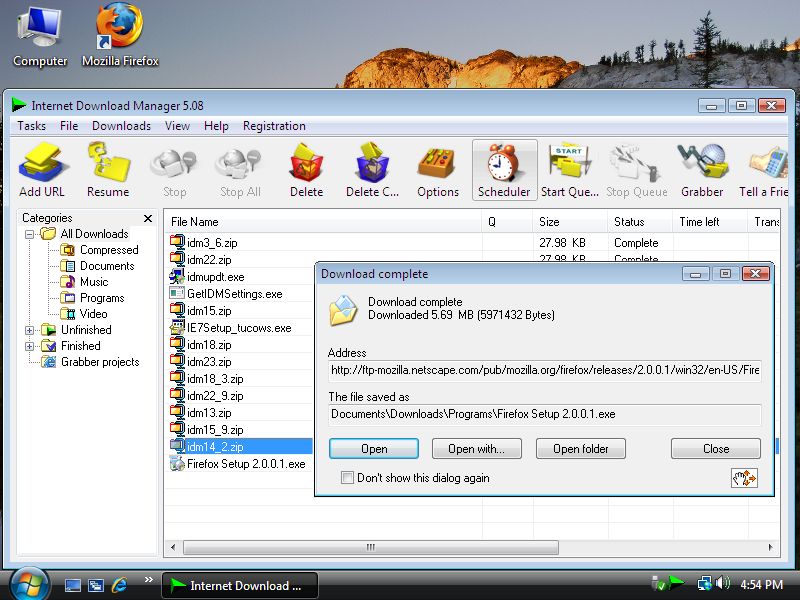
IDM-Resume-Broken-Downloads
Resuming Broken Downloads in IDM: Method 1
This method would simply refresh the download address and resume the download.
1.Open IDM and right click on the file whose download has been broken.
2.Click the “Refresh Download Address” button.
3.A window on your browser would open up, redirecting you to the download location.
4.It will then grab the download link, and you simply need to click “OK” , thats all.
Method 2: Entering the New Download Address Manually
This would enable to enter the new download address and resume the download.
1.Open IDM , right click the file whose download you would like to resume.
2.Click Properties.
3.Copy the address field and copy it into the web browser you use for surfing the net.
4.IDM would once again open up and ask you to download the file again.Click on “Download Later”.
5.Now open the properties of the new file (which you have asked IDM to download later).Copy the new address from this file and paste it into the properties of the old file (which you are trying to resume).Click OK and exit.
5.Click Resume on the old file now.
6.Your download shall resume.
Kindly note that not all files can be resumed from the point where the download was broken, some files would download again from the beginning.
Leave a Reply